Fake photos & AI images
How to Tell If a Photo Is Photoshopped: 6 Free Checks
How to tell if a photo is photoshopped: check shadows, edges, metadata and AI edit labels to spot retouched listing and dating photos before you pay.
You can tell if a photo is photoshopped by looking for the breaks that editing leaves behind: shadows that don't match the light, straight lines that bend next to a body, repeated patterns and patches that look too smooth. Zoom in, push brightness and contrast to the extremes, and compare the picture with other photos of the same thing. Metadata and forensic tools add more clues. You'll rarely get proof this way, but you'll usually get enough to make a decision.
Don't rely on your first impression. In an experiment at the University of Warwick with 707 participants, people identified manipulated photos only 60 percent of the time, where pure guessing would have scored 50 percent. Even when they got it right, they located the altered area in just 45 percent of cases. At TrustCamera we build a camera app that adds a check code to photos the moment they're taken, so one question is at the center of our work: what can you still tell from a finished file?
How to tell if a photo is photoshopped: 6 quick checks
To tell if a photo is photoshopped, check the light, shadows and straight lines first, then zoom in on edges and surfaces. Extreme brightness and contrast settings make hidden retouching visible. Metadata and a comparison with other photos of the same subject round it out. Each check only gives you clues, and only several together add up to a solid judgment.
Here's the process:
- Zoom in: Open the photo at full resolution, ideally on a computer, and scan it section by section.
- Check the light: Do all shadows fall in the same direction, and does each object's brightness match its surroundings?
- Look at lines and edges: Bent door frames, bright halos or ragged outlines point to retouching.
- Compare surfaces: Repeated patterns and patches without grain give away cloned or smoothed areas.
- Max out brightness and contrast: Extreme settings in a photo editor make those patches stand out.
- Check metadata and other photos: An editing app in the file details, or another photo of the same subject that looks different, is a strong hint.
These checks are for real photos that were changed afterwards. Whether a picture was lifted from a different context or generated entirely by AI calls for other methods. Our guide on how to tell if a photo is real covers all of them, from context checks to proof of origin.
Harmless edit or image manipulation: which changes matter?
Cropping, brightening, adding a filter: almost every photo that ends up online has been edited somehow. So "edited or not?" is rarely the useful question. What matters is whether the edit changes what the photo tells you. A picture of a bike that's a little brighter and straighter than the original still shows the same bike. If the scratch on the frame is gone, it shows a different bike from the one you'll get.
| Usually harmless | A problem if it's not disclosed |
|---|---|
| Cropping and straightening | Retouching out scratches, stains or cracks |
| Adjusting brightness, contrast and color | Removing a construction site or mold from rental photos |
| A subtle filter | Slimming a body or smoothing skin |
| Removing red-eye | Changing text and numbers, such as a price or a date |
One test question helps: would you decide differently if you saw the unedited original? The line is blurry, and not every retouch is a scam. Someone using a filter on a dating profile usually wants to look good, not to deceive. Small, plausible edits like that are also the hardest to spot, because nothing about them looks impossible. So look first where an edit would make a real difference to you.
Light and shadows: does everything match one light source?
Light is one of the best ways to tell if a photo is photoshopped, because it has to work everywhere in the picture at once. Outdoors in sunshine there is exactly one light source. All shadows therefore fall in the same direction and are similarly hard or soft. If a person's shadow points left and the car next to them casts one to the right, something is off. If an object has no shadow at all, it may have been pasted in.
Also check which side of faces and objects is lit. Someone lit from the left doesn't fit convincingly into a scene where the sun comes from the right. The small highlights in people's eyes help too: with several people in one photo, they usually sit in a similar spot. Light color has to match as well. A person in warm lamplight looks cut out against a cool, bluish evening scene.
The limitation: indoors, with several lamps, a flash or windows, multiple shadows are normal without any editing. Conflicting shadows are a weaker clue there than outdoors.
Edges, bent lines and reflections: where retouching leaves traces
Edges are where you can often tell if a photo is photoshopped. Anyone who cuts something out and pastes it in creates one, and that's where mistakes happen. Zoom in on the outlines of people and objects. A light or dark halo, unusually crisp contours in an otherwise soft image, or chopped-off strands of hair suggest a composite. Hair is especially hard to cut out cleanly, so it's worth a close look.
Straight lines are your best ally. Door frames, tile joints, shelves, railings and the horizon are straight in real life. If they bend right next to a waist, an upper arm or a thigh, the body was probably slimmed with a warp tool. Such a tool doesn't just move the body. It drags the background next to it along too.
Reflections and proportions are the third checkpoint. Mirrors, windows, sunglasses and glossy tabletops have to show what's in front of them. If an object is missing from its reflection, it was either added or removed somewhere else. And if something looks too big or too small next to doors, hands or furniture, it probably doesn't belong in the scene.
Cloned patches, airbrushed skin and altered text
Surfaces give edits away too, even without a second image to compare. To remove a stain or a scratch, editors often copy nearby parts of the image over it. That creates repetition: the same cloud twice, identical leaves in foliage, a carpet pattern that repeats exactly in one spot. Look for shapes that match a little too well. In nature, no two stones look alike.
The second sign is missing noise. Almost every photo has a fine grain that shows most in low light and dark areas. Retouched areas look smooth, almost like plastic. Beauty filters often give themselves away on skin: pores and fine lines are gone, while hair, clothes and background stay sharp and grainy.
Text and numbers are the third point. If something was changed on a price tag, a document or a screenshot, the font, size, sharpness or spacing often doesn't quite match the rest. Watch for digits that sit slightly higher or lower, and for smudged pixels around single characters. This is especially worth checking on a screenshot that supposedly shows a payment.
Push brightness and contrast to reveal hidden edits
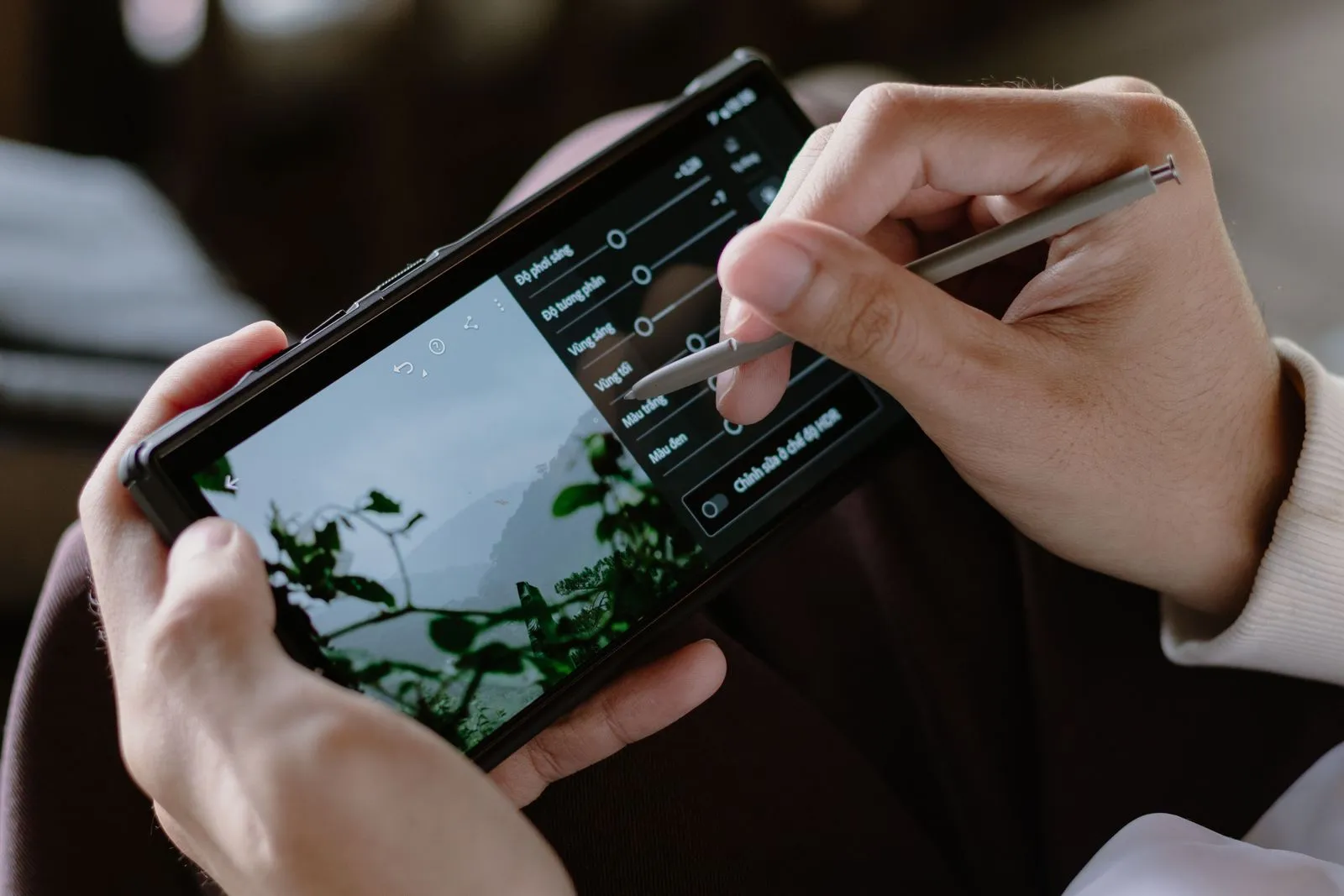
Many retouches are invisible at normal brightness because color and tone were matched carefully. The texture underneath often doesn't match, though, and it shows up when you exaggerate the settings. Your phone's photo editor is all you need. Open a copy of the photo or a screenshot of it, then drag exposure, shadows and contrast all the way up and all the way down, one at a time.
Look for areas that suddenly turn flat and textureless, hard transitions in the middle of a wall or sky, and outlines you couldn't see before. Raising the saturation as well makes pasted-in parts with a slightly different color stand out. It's a quick way to tell if a photo is photoshopped without installing anything.
Comparing with other photos matters just as much. If a seller shows an item from several angles, a scratch has to appear in every photo that shows that spot. On dating profiles, face shape and skin should look consistent across all pictures. And if a reverse image search turns up an older version of the same photo, a side-by-side comparison often shows right away what was changed.
Metadata and error level analysis: clues, not proof
Cameras and phones usually store extra information in the image file, known as EXIF data. Two fields are interesting when you suspect editing. The "Software" field often shows which program created or last saved the file. If it lists Photoshop, Lightroom or an editing app, the image was at least opened and saved with it. Unedited phone photos usually just show the camera software or operating system version there.
The second field is the modification date. If it's well after the capture date, the file was saved again later. This only works in one direction: many platforms strip metadata on upload, and anyone can edit it in a few clicks. An empty field proves nothing, while a Photoshop entry is a reason to look closer.
On its own, metadata won't let you tell if a photo is photoshopped, but it points you in the right direction. Our guide on how to see photo metadata shows how to read these fields on your phone and computer.
Forensic tools go deeper. A well-known free option is FotoForensics with its error level analysis (ELA). JPEG images lose a little quality every time they're saved. According to the FotoForensics ELA tutorial, the analysis highlights areas whose compression level differs from the rest. Areas changed after the fact often show up brighter.
The same tutorial is clear about the limits. If an image has been resaved many times, it can end up at the same minimum error level everywhere, and the traces disappear. High-contrast edges look bright even in genuine photos, and small changes may not show at all. Reading the results takes practice and is often inconclusive, especially for images that have passed through messaging apps or social media.
One warning before you upload: the FotoForensics FAQ states plainly that it is a public site with no privacy. Uploaded pictures stay on the server for at least three months and are used for research. Keep private photos, IDs and pictures of children off it.
Edited with AI: object erasers, Extend and Reframe on your phone
Clean retouching used to take Photoshop and practice. Now your phone does it. For iPhones with Apple Intelligence, Apple Support describes tools that remove distracting objects, extend a photo beyond its original frame, and even reframe it, which changes the point of capture after the photo was taken. A tap or a circle is enough. Google Photos has a similar tool called Magic Eraser.
That blurs the line between edited and AI-generated. The AI fills removed areas with new pixels that never existed. What you get is a real photo with an invented part. Typical traces are smeared or repeating textures exactly where something used to be, and details like lettering, fences or tiles that suddenly stop making sense in that spot.
Some apps label these edits. In Google Photos, open the image, tap More and then About. According to Google Photos Help, the "How this was made" section says "Edited with AI tools" when a generative feature such as Magic Eraser created new pixels. This only works for images that carry Content Credentials, the provenance data defined by the C2PA standard.
Don't count on it. Labels in the metadata are lost when you take a screenshot and on many upload platforms. You can check whether an image still carries Content Credentials with the Content Credentials verify tool. If they're missing, that tells you nothing.
If an image wasn't just edited but generated from scratch, other signs apply. Our guide on how to tell if an image is AI-generated covers them. Manipulated videos and swapped faces have their own warning signs, explained in how to spot a deepfake.
Marketplace, rental and dating photos: where edits hide
In everyday life, you mostly run into edited photos where someone wants something from you: your money, your signature on a lease, or your trust. Each of these situations has its typical retouches.
Facebook Marketplace listings: damage that isn't in the picture
With used items, the typical edit is subtle: a scratch, a stain or a dent gets retouched away, often with nothing more than an AI eraser. So check the spots where such items usually get damaged, like corners, screens, soles and seams. The quickest way to tell if a listing photo is photoshopped is to find the one area that looks smoother than everything around it. Then ask the seller for another photo or a short video of exactly that spot, in daylight and from an angle you choose.
If an item arrives with damage the photos hid, how you paid decides whether you can get a refund. Our guide to the safest way to pay on Facebook Marketplace compares which options cover items that aren't as described.

Rental listings: rooms that look better than they are
Rental photos are often brightened and shot with a wide-angle lens. That's standard and not deception in itself. It becomes a problem when things that come with the place are missing: water stains on the wall, the construction site outside the window, a power line in the view from the balcony. Watch for a sky that's too blue and too even, and for views that don't fit the location.
Edited photos aren't the only risk with rentals. According to the FTC, scammers also copy photos from real listings and repost them with their own contact details, so run a reverse image search too. The other red flags of a fake listing are in our guide to rental scams.
Dating profiles: filters and retouching
Smooth skin, bigger eyes and a slimmer jaw on a dating profile are usually harmless vanity. But if the person looks like someone different in every picture, or there isn't a single unfiltered photo, ask for a video call. A verification badge only helps so much. On Tinder, the blue checkmark shows that the person in the photos is the one swiping and messaging. It doesn't tell you whether those photos were filtered.
Your own photos: how to show nothing was retouched
The question works the other way around too. Buyers can't always tell if a photo is photoshopped, so if you're selling something or moving out of a rental, make it easy for them. Simple habits help: photograph flaws openly, skip filters, and shoot several angles in daylight. A buyer who sees the scratch in the photo has no reason to argue later. For renters, our move-in inspection guide shows how to record a unit's condition room by room.
Proof of origin created at the moment of capture, such as the Content Credentials mentioned above, goes a step further. TrustCamera pursues the same goal: you take the photo directly in the app, and it gets a check code. Anyone with the code can check at app.trustcamera.com, for free and without an account, whether the image is unchanged since capture. They also see the capture time and approximate location. The app itself is coming soon for Android and iOS.
There's a limit here too. Proof like this shows the file wasn't changed. It doesn't show whether you turned the scratch away from the camera. Taking honest photos is still up to you.
Frequently asked questions about photoshopped photos
Can you tell if a photo is photoshopped online for free?
Yes, with limits. Free forensic sites such as FotoForensics offer error level analysis, which makes differences in JPEG compression visible. The results are often inconclusive, especially for images that have already passed through messaging apps or social media. A reverse image search can sometimes find the unedited original if it's online somewhere. Don't upload private photos to public tools.
Is there an app to tell if a photo is photoshopped?
No app reliably detects every edit. Free help is already on your phone: the photo editor for pushing brightness and contrast, the info view for basic metadata, and in Google Photos the "How this was made" section for AI edits. Online tools like FotoForensics show technical anomalies, but you have to interpret them yourself.
How do you tell if a photo was edited with AI?
Look for smeared or repeating textures exactly where something might have been removed, and for details that stop making sense in one spot. Also check the image details, because some apps record AI edits there. If there's no such label, though, that doesn't prove no AI was used.
Can you tell if a photo is photoshopped on an iPhone?
There's no built-in button that detects edits, but your iPhone covers the basics. Zoom in with two fingers, then open a copy in the editor and push exposure, contrast and shadows to the extremes. Swipe up on the photo to see details such as the camera and the date. Compare them with what the sender told you.
Does metadata show if a photo was edited?
Sometimes. If the "Software" field lists an editing program like Photoshop, the file was saved with it. A later modification date is another hint. Missing or unremarkable metadata proves nothing, though, because many platforms strip it on upload and anyone can change it with little effort.
Is a filtered photo considered photoshopped?
Technically yes, but in everyday life that's rarely the problem. Cropping, brightening or a subtle color filter don't change what the photo shows. An edit becomes a problem when it affects your decision: a retouched flaw, an altered face or a changed number. Ask yourself whether you'd decide differently if you saw the original.
Conclusion: you tell if a photo is photoshopped by finding the breaks
Many retouches leave a break somewhere: in the light, along an edge, in a line or in the texture of a surface. To tell if a photo is photoshopped, look for those spots on purpose, push brightness and contrast, and compare with other photos. Metadata and forensic tools add to that but don't replace your own eyes. If doubts remain, ask for a new photo or video before you pay or meet up.
The better the tools get, the less often your eyes alone will be enough. That's why we think proof created at the moment of capture matters. Until it's common, checking a photo means collecting clues. When many of them point the same way, the photo deserves your suspicion.
About the author

Co-founder & Marketing at TrustCamera
Yannick is a co-founder of TrustCamera and leads marketing and content. He holds a bachelor's and a master's degree in business and has worked in content marketing and SEO for years.