Fake photos & AI images
How to See Photo Metadata on iPhone, Android, PC and Mac
How to see photo metadata on iPhone, Android, Windows and Mac, what the EXIF data reveals, how easily it's faked, and how to remove your location first.
You can see photo metadata without installing anything. On an iPhone, open the picture in the Photos app and swipe up. On Android, open it in Google Photos and tap More, then About. On Windows, right-click the file and choose Properties, then the Details tab. On a Mac, use Preview or press Command-I in Photos. You'll see the camera model, when the photo was taken and often where.
Keep two things in mind. That information can be edited or deleted in seconds, so it never proves a photo is genuine. It can also reveal more than you'd like, such as the exact spot where you photographed the dresser you're listing on Facebook Marketplace.
At TrustCamera we're building a camera app that records a photo's origin at the moment of capture, so we know how little ordinary metadata says on its own. Checking it is one of several ways to tell if a photo is real. Below you'll find where the photo metadata lives on every device, how to read it and how to protect your own pictures.
How to see photo metadata on any device
Every major operating system can show photo metadata without extra software. Open the picture in the built-in photo app or file manager and look for an info panel. If the fields are mostly empty, the metadata was probably stripped when the image was sent or uploaded. That alone doesn't mean the photo is fake.
| Device | Where to look | What you'll see |
|---|---|---|
| iPhone | Photos app, open the photo, swipe up or tap the Info button | Device, lens, shutter speed, date, location |
| Android | Google Photos, open the photo, tap More, then About, or swipe up | Date, time, location and more details |
| Windows | Right-click the file, Properties, Details tab | Camera, date taken, exposure, GPS |
| Mac | Preview: Tools > Show Location Info; Photos: Command-I | GPS data, device, camera data, date |
For a quick look, these built-in tools are all you need. They don't show every field stored in the file, though. If you want more, many photo viewers and editing programs have their own info or metadata panel. For everyday questions you rarely need it.
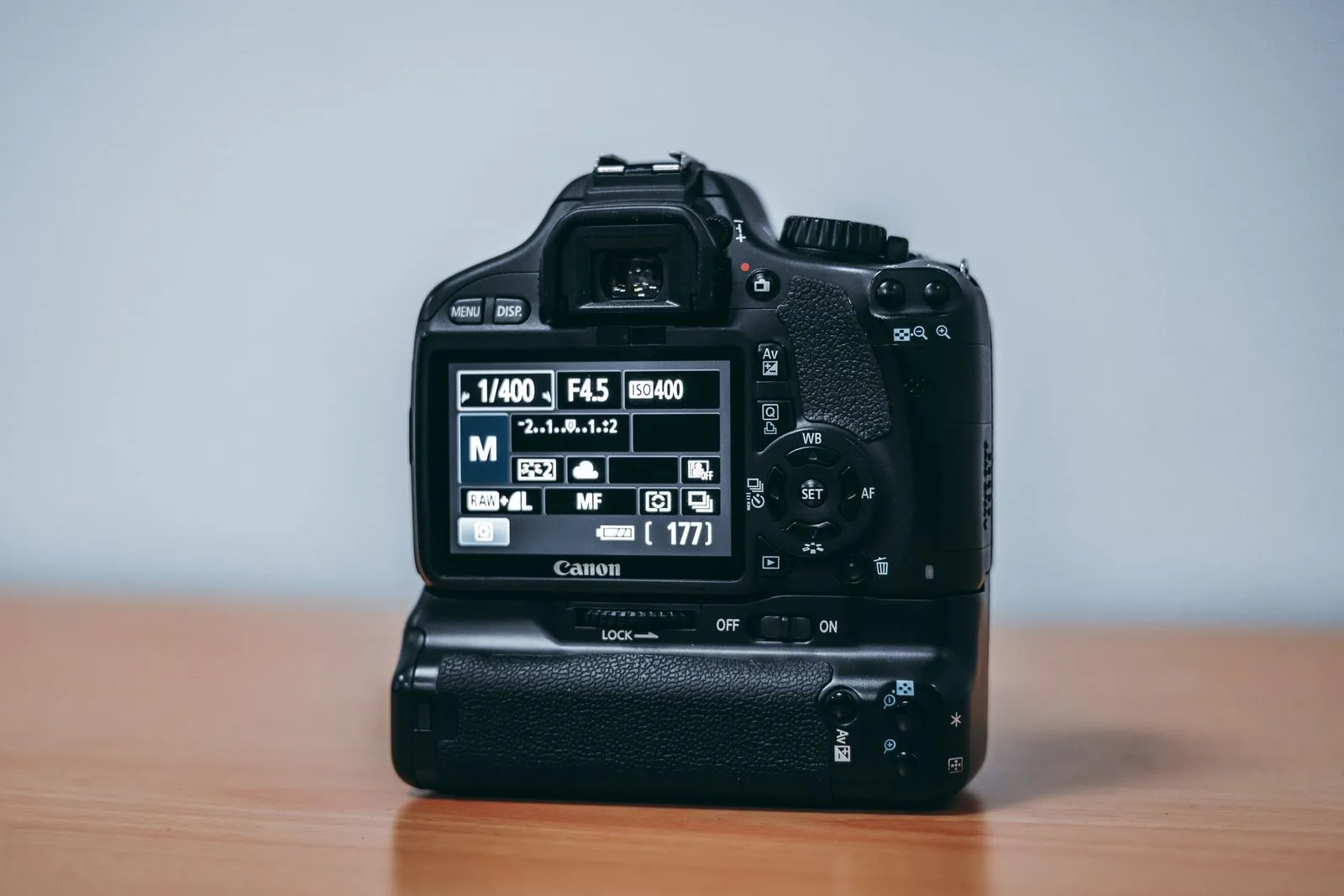
What photo metadata is and what it reveals
Photo metadata is information stored inside the image file, next to the picture itself. Most of it is EXIF data, short for Exchangeable Image File Format, which cameras and phones write automatically when you press the shutter. Which fields are filled in depends on the device and its settings. These are the ones that matter most when you check a photo:
- Device: the make and model of the camera or phone, often the lens as well.
- Date and time: according to the device clock. If the clock is wrong, so is the date.
- Exposure: aperture, shutter speed, ISO, focal length and whether the flash fired.
- Location: GPS coordinates, if the camera app had access to your location.
- Software: for some files, the program that created or last saved the image.
Don't confuse the date taken with the file dates. On Windows, the General tab shows when the file was created and modified. Those values often change as soon as you copy or download the file. The actual capture date from the EXIF data is listed as "Date taken" on the Details tab. To put that date visibly on the picture, and to see what such a stamp does and doesn't prove, read our guide on how to timestamp photos.
Besides EXIF, there are other metadata formats such as IPTC and XMP. They usually hold captions, keywords or copyright details that photographers or apps add later. To find out when and with what a photo was taken, EXIF is the first place to look.
Check photo metadata on iPhone and Android
On a phone, the details are one swipe away. Keep in mind that photo apps show a selection of fields, not the full list. Some of the values they show may also have been edited by you or by the app.
iPhone: the Photos app
Open the picture in the Photos app, then swipe up or tap the Info button. According to Apple's guide to photo and video information, you'll see the device, the date and time, camera metadata such as lens, shutter speed and file size, and the location with a link to Maps, depending on the photo. Next to the date and the location there's an Adjust button. It lets you change both, even for a batch of photos.
Android: Google Photos
On many Android phones, Google Photos is the default gallery. Tap a photo, then tap More and About at the top, or simply swipe up. That's how Google Photos Help describes it. Next to the date and timestamp you can tap Edit and pick a new date. Google points out that if you share the photo to other apps or download it, it may show the original date and time saved by your camera.
If your phone uses its own gallery app, such as Samsung Gallery, look for a menu item called Details or Info. The manufacturer decides which fields show up there. If that's not enough, check the file on a computer.
Read EXIF data on Windows and Mac
A computer often shows more fields than a phone. That helps when you've saved a photo from a listing or an email and want a closer look.
Windows: File Properties
On Windows you can read EXIF data right in File Explorer:
- Right-click the image file.
- Choose Properties.
- Open the Details tab.
Under Camera you'll find camera maker, camera model, F-stop, exposure time and ISO speed. The Origin section lists the date taken and, for some images, the program name, meaning the software that saved the file. If the photo has a location, the GPS section shows latitude and longitude.
Mac: Preview and Photos
To check a single file you've downloaded, Preview is the fastest option. Open the image and choose Tools > Show Location Info. If that item is grayed out, the image contains no location information, according to Apple's Preview guide. Otherwise you'll see a GPS section with a pin on a world map. If the photo is in your library, select it in the Photos app and press Command-I. The info window shows the device, date, camera metadata and location.
Online photo metadata viewers: handy, with a catch
Search for a photo metadata viewer and you'll find plenty of free websites. They're useful when you're on someone else's computer or dealing with an unusual file type. You upload the photo and get every field in one long list, sometimes with the location on a map.
The catch: you're handing the file to a stranger's server, location and all. What the operator does with it is spelled out, at best, in a privacy policy. Some tools say they process files only locally in your browser. As a regular user, you have no easy way to confirm that.
For a stranger's photo from a listing, that's usually fine. Your own photos showing your home, your kids or your neighborhood are better kept off such sites. The built-in tools on your device show the same core fields without the file ever leaving your phone or computer.
Why many photos have no metadata left
If you check the photo metadata of a picture from a chat or a listing and find almost nothing, that's normal. Many messaging apps and social networks shrink images when you send or post them, and in the process they typically remove most of the metadata. Few of them document this officially, and the behavior can change with any update.
There are other common reasons too. Screenshots carry no camera data, because they never passed through a camera. Editing apps and image compressors often drop fields. And people who spread fakes tend to delete revealing details on purpose.
Whatever got lost along the way can't be recovered from the copy. That applies to photos you received by text or messaging app as well: only the original file on the sender's device still has the full metadata. If you need it, ask for the original, sent unchanged as a file.
Tip: Want to know what a particular app does with your metadata? Test it. Send yourself a photo that has a location, save the file you receive and check which details are still there.
Can photo metadata be faked? Yes, in seconds
Yes, and it takes no special skills to change photo metadata. As shown above, the iPhone and Google Photos let you adjust the date and time yourself, and the iPhone lets you change the location too. Free metadata editors exist for every operating system. With them, anyone can rewrite any field in the file: camera model, capture time, GPS coordinates, software.
So when you check a photo, metadata that fits the story proves nothing. Someone preparing a fake can give it matching details. Contradictions that the faker overlooked are far more telling:
- The date taken is earlier than the release of the phone model listed.
- A supposed phone snapshot was shot on a professional camera, according to its EXIF data.
- The software field names a photo editing program.
- The GPS location is in a different state from where the seller claims to live.
A red flag like this is a reason to ask questions, not proof of a scam. Honest sellers edit photos too, or send pictures from a different device. To spot retouching in the image itself, see our guide on how to tell if a photo is photoshopped. To find out whether a photo appeared online before, run a reverse image search.
AI-generated images usually carry no real camera data. Some providers label them in the metadata instead, but that label can be removed as well. Other ways to catch them are covered in our guide on how to tell if an image is AI-generated.

How to remove metadata from a photo before you share it
If you photograph a couch, a bike or clothes at home and send the picture as a file, you may be sending your home address along with it. Check the photo metadata first to see whether a location is stored. Apple's personal safety guide warns that people you share such photos with may be able to access the location metadata and learn where they were taken. It lists several fixes:
- Only when sharing: in the Share sheet, tap Options and turn off Location.
- From one photo (iPhone): tap the More button, then Adjust Info, Adjust Location, No Location.
- From one photo (Mac): in Photos, select the pictures, then choose Image > Location > Hide Location.
- Stop saving it: go to Settings > Privacy & Security > Location Services > Camera and tap Never.
On Android, turn off location saving in the camera app. According to Google's overview of camera location settings, the setting is called Save location on Google devices and Location tags on Samsung phones. Photos without a location may no longer show up in the map view of Google Photos, though.
A word of caution about Google Photos: if your camera added the location automatically, you can't edit or remove it there, according to Google's help page on photo locations. If you download such a photo and email it, the recipient sees the original location. For those pictures you'll need another route, for example your computer.
On Windows, the Details tab has a link at the bottom called Remove Properties and Personal Information. Choose "Create a copy with all possible properties removed," or delete individual fields such as the GPS data. Don't count on a platform to strip the metadata for you later. Remove the location yourself before a photo leaves your device. If you sell online, you have more to protect: our guide to Facebook Marketplace seller scams shows how fake buyers go after card details and verification codes.
Signed metadata: Content Credentials and Apple Reference Image
Anyone can change ordinary metadata without leaving a trace. Content Credentials, a standard from the Coalition for Content Provenance and Authenticity (C2PA), address that with cryptographic signatures. According to Google's help page on Content Credentials, Google Photos shows them in the About panel under "How this was made," along with the company that signed them. A default Pixel 10 capture reads "Media captured with a camera," and a tampered history triggers an error. Google also notes that Content Credentials don't tell you whether a photo is real or fake.
Apple has taken its own route. On the iPhone 18 Pro and iPhone 18 Pro Max, the opt-in Reference mode in the Camera app also captures signed sensor data. According to Apple's support article on Reference Image, Photos develops it into a reference image that you can compare with the regular photo. Edits such as a crop, a color adjustment or a change made with generative AI then become visible. Viewing works on devices running iOS 27, iPadOS 27 or macOS 27 or later.
One limit applies to all of these: remove the signed data and you remove the proof along with it. A photo without Content Credentials isn't suspicious, just unverified. So far, only a small share of the photos you come across online carry them.
TrustCamera pursues a similar goal with a different approach. You take a photo or video directly in the app, and uploads from the gallery aren't possible. The app stores a digital fingerprint of the file, the capture time and only the approximate location, accurate to about 6 miles (10 km), never the exact position. Anyone who gets the check code can check for free in a browser whether the file has changed since capture. It can't show whether the scene was staged. Here's how TrustCamera works.
Frequently asked questions about photo metadata
Do all pictures have metadata?
Almost every photo straight from a phone or digital camera does. It usually includes the device, the date and time, exposure settings and, if location access was on, GPS coordinates. Screenshots, many images from social media and pictures sent through messaging apps often carry little or none, because the metadata was never recorded or was stripped along the way.
How do you get metadata from a photo?
Use the tools you already have. On an iPhone, open the photo in Photos and swipe up. On Android, open it in Google Photos and tap More, then About. On Windows, right-click the file, choose Properties and open the Details tab. On a Mac, use Tools > Show Location Info in Preview or press Command-I in Photos.
Can you see photo metadata on Facebook or Instagram?
Usually not in full. Large platforms reprocess images on upload and typically strip most of the EXIF data from the copy other people see. They rarely promise this in writing, though, and what a platform stores or analyzes on its own servers is a separate question. Remove your location before posting instead of relying on the platform.
Can you change the metadata on a photo?
Yes. The Photos app on iPhone lets you adjust the date, time and location, Google Photos the date and time, and free metadata editors can rewrite any field directly in the file. Nothing in the file shows that it was changed. At most, contradictions give it away, such as a date taken before the listed camera model was even released.
Can you recover metadata from a photo sent by text?
Not from the copy you received. Whatever was removed during sending is no longer in the file and can't be restored. Only the original file on the sender's device still has the full metadata. If you need it, ask the sender to share the original, unchanged, as a file instead of a regular photo message.
How do I remove the location from a photo on my iPhone?
For a single share, tap Options in the Share sheet and turn off Location. To remove it from the photo itself, tap the More button, then Adjust Info, Adjust Location and No Location. To stop saving locations altogether, set Camera to Never under Settings > Privacy & Security > Location Services.
Is a photo without metadata suspicious?
No. Messaging apps, social networks and screenshots strip metadata all the time. A photo without EXIF data isn't a red flag, and one with complete data isn't proof of authenticity. What matters are contradictions between the metadata and the story someone is telling you.
Conclusion: photo metadata is a clue, not proof
You don't need an extra app to see photo metadata. The Photos app, Google Photos, File Properties and Preview show the key details. Use them as a quick plausibility check, especially to look for contradictions. They're no proof of authenticity, since they're far too easy to change.
Your own photos deserve just as much attention. Before you send a picture taken at home or post it in a listing, remove the location. If you want to show that a photo hasn't changed since it was taken, you need signed provenance data that is created at the moment of capture.
About the author

Co-founder & Marketing at TrustCamera
Yannick is a co-founder of TrustCamera and leads marketing and content. He holds a bachelor's and a master's degree in business and has worked in content marketing and SEO for years.